
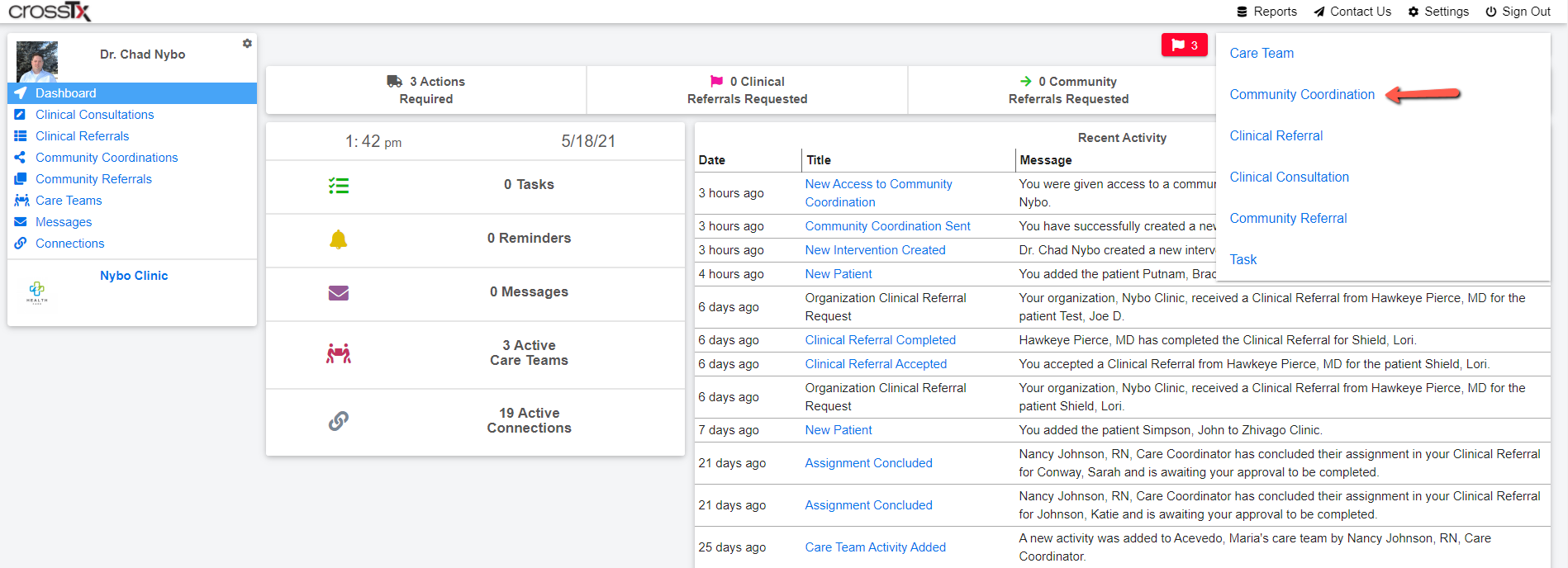
After logging in to the CrossTx platform click on the blue Create button at the top right and then choose Community Coordination from the list.
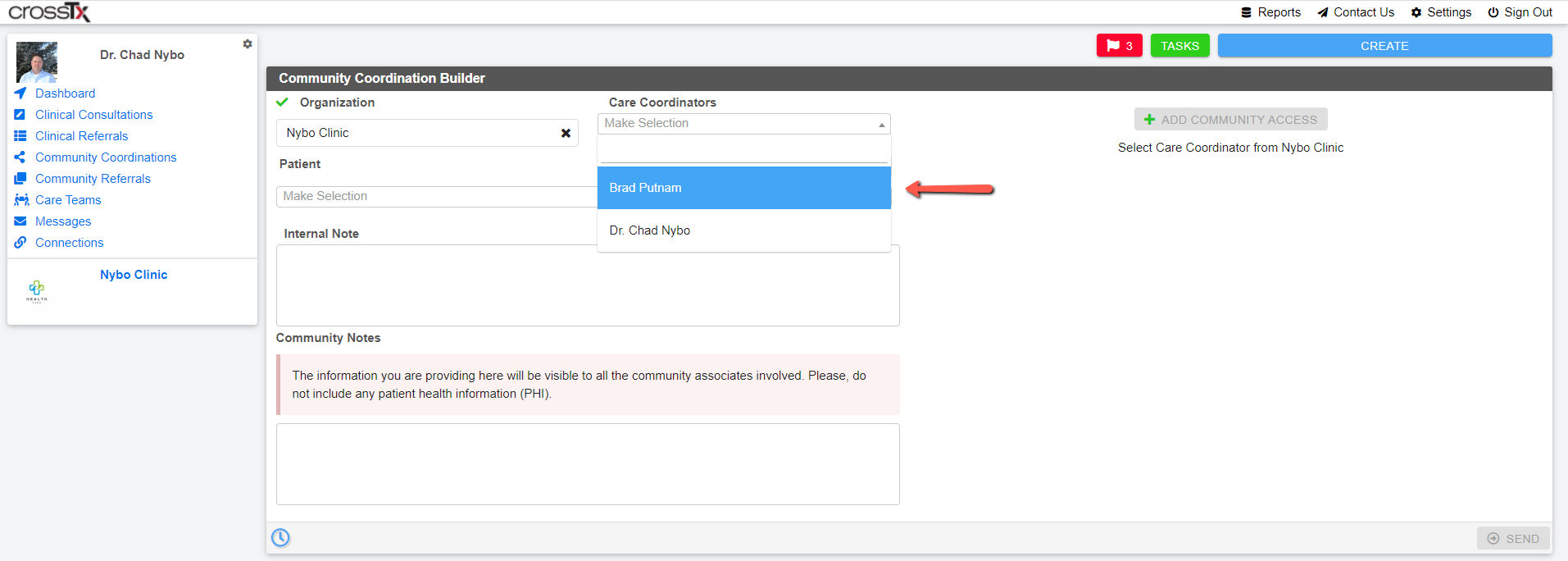
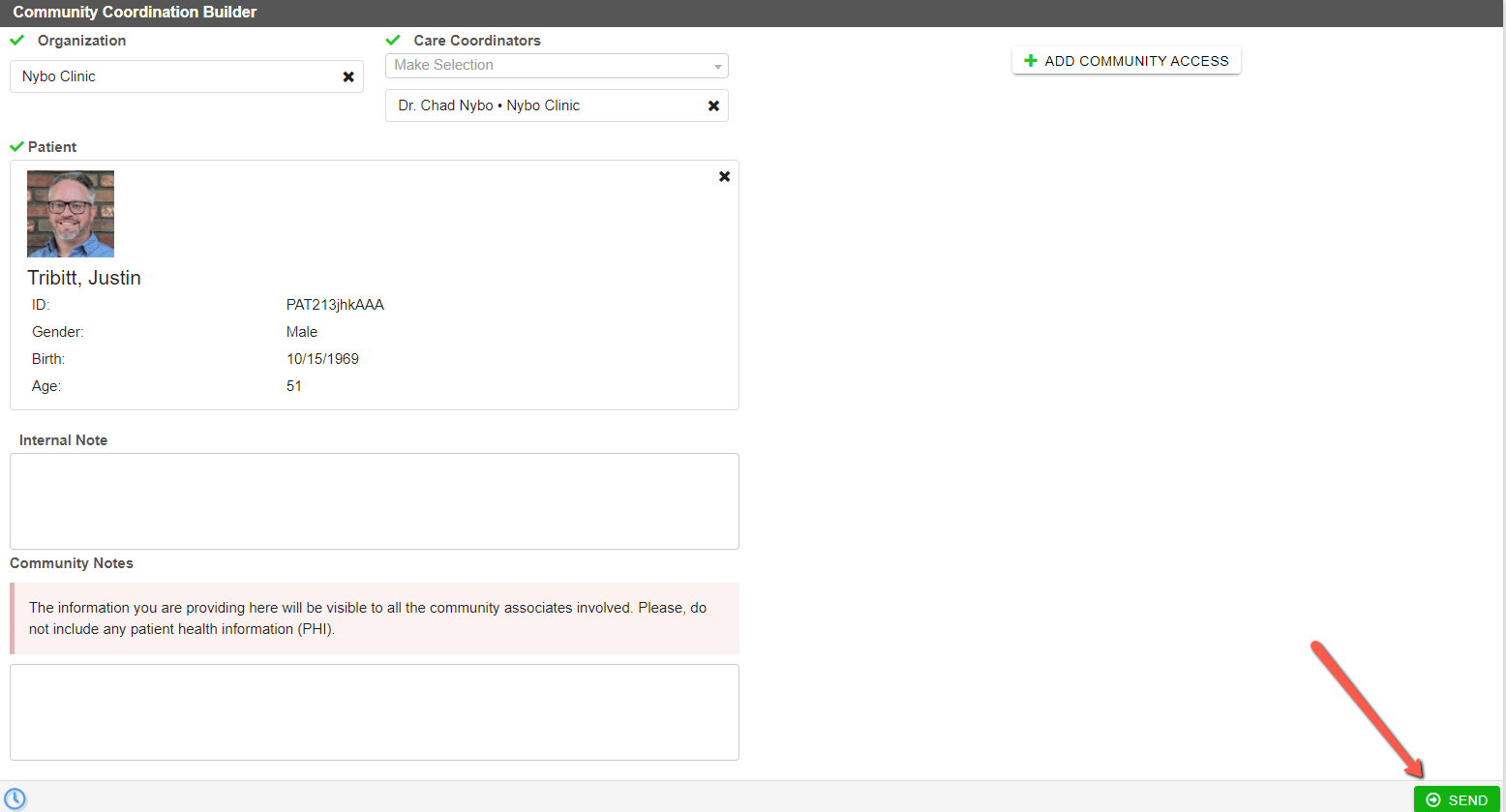
Click on the Care Coordinators drop down box and choose the care coordinator you wish to work with the patient.
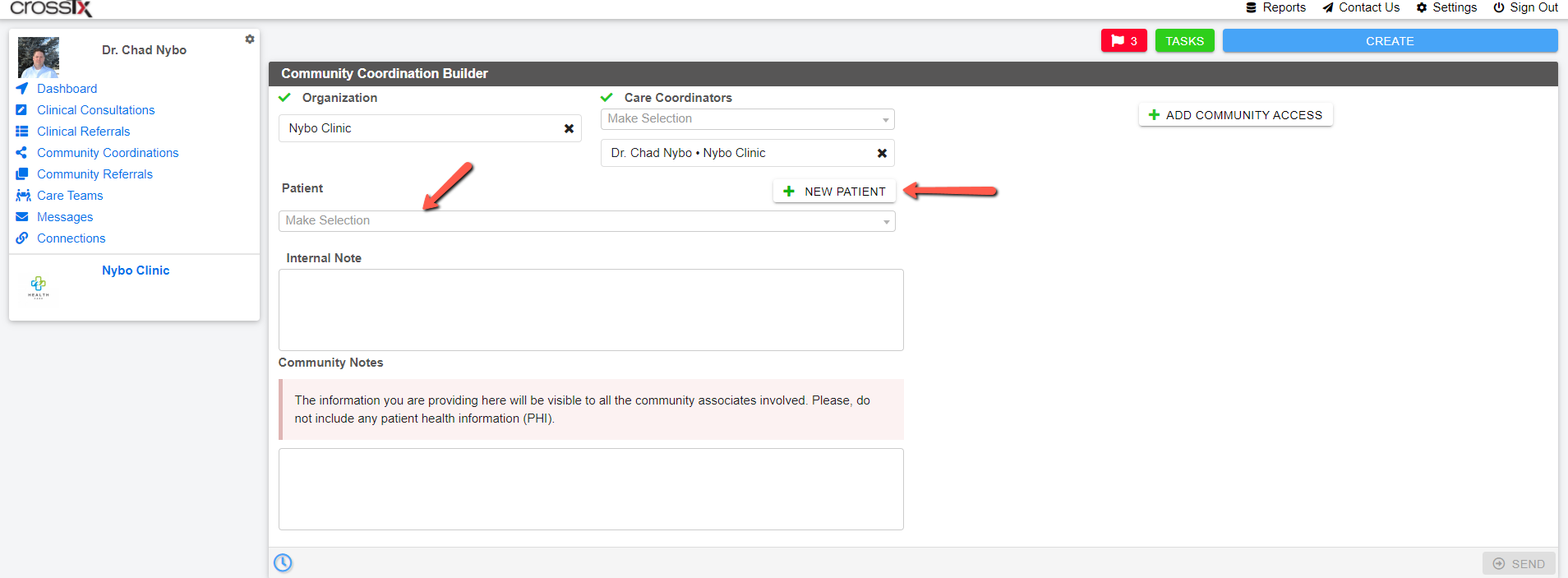
If the patient is already in the CrossTx platform you can search for them by clicking the Patient drop down box and typing at least 4 letters of the patient's first or last name. You can also create a new patient by clicking the +New Patient button.
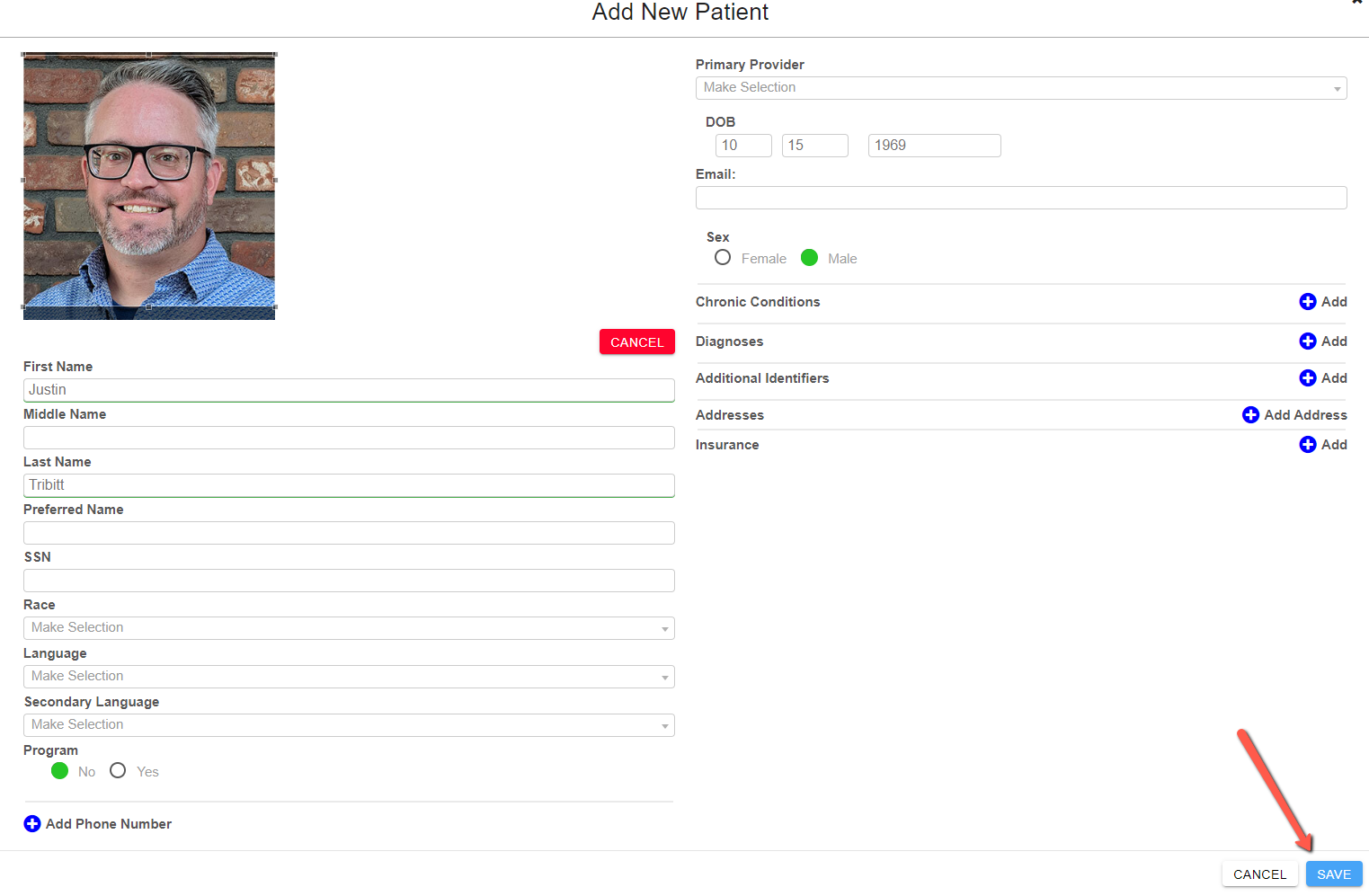
Clicking the +New Patient button will cause a Add New Patient box to pop up. There are only 4 required fields to create a patient. First Name, Last Name, Date of Birth, and Sex are the only required fields so a patient can literally be created in seconds. You can add as much other information as you would like, but nothing else is required. Once those four required fields are completed click the blue Save button bottom right.
Once the patient has been created you can add an Internal Note (seen only by your organization) and a Community Note (seen by community resources you invite into the coordination) if you desire, but this is not required. Then click the green Send button bottom right.
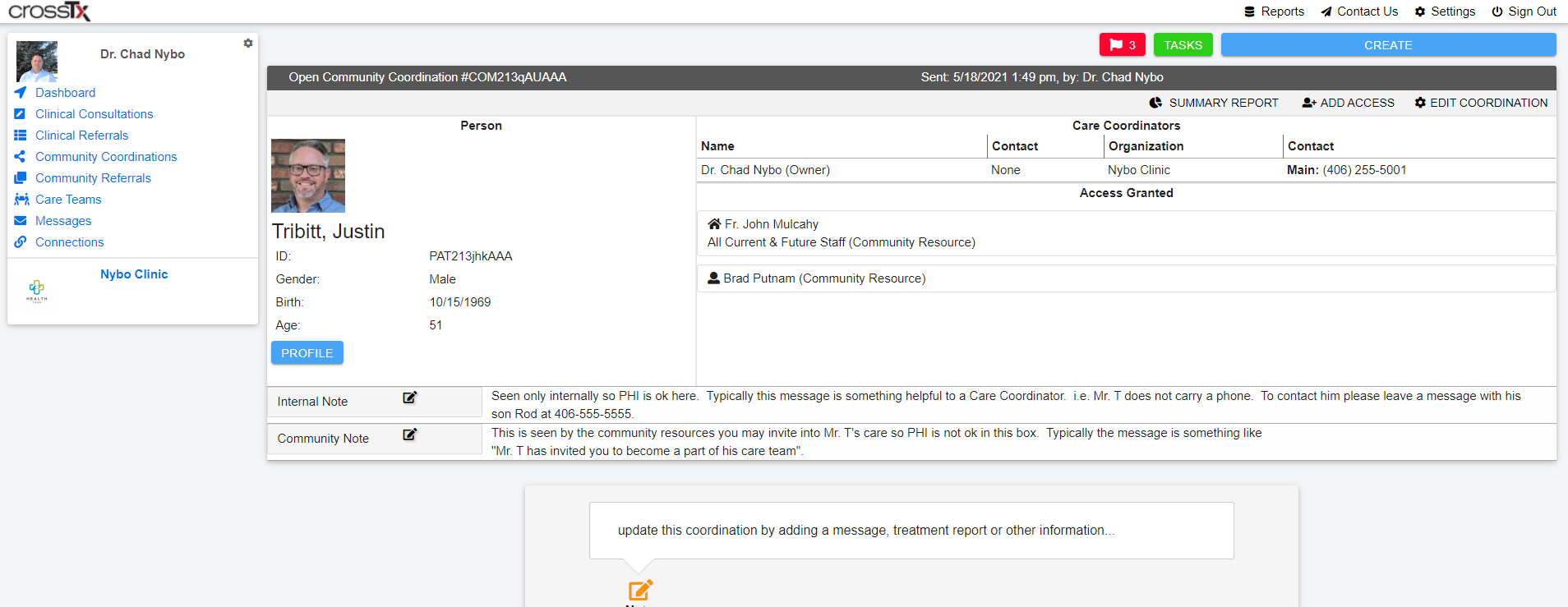
The Community Coordination has now been created and will look something like this.
Comments
0 comments
Please sign in to leave a comment.