
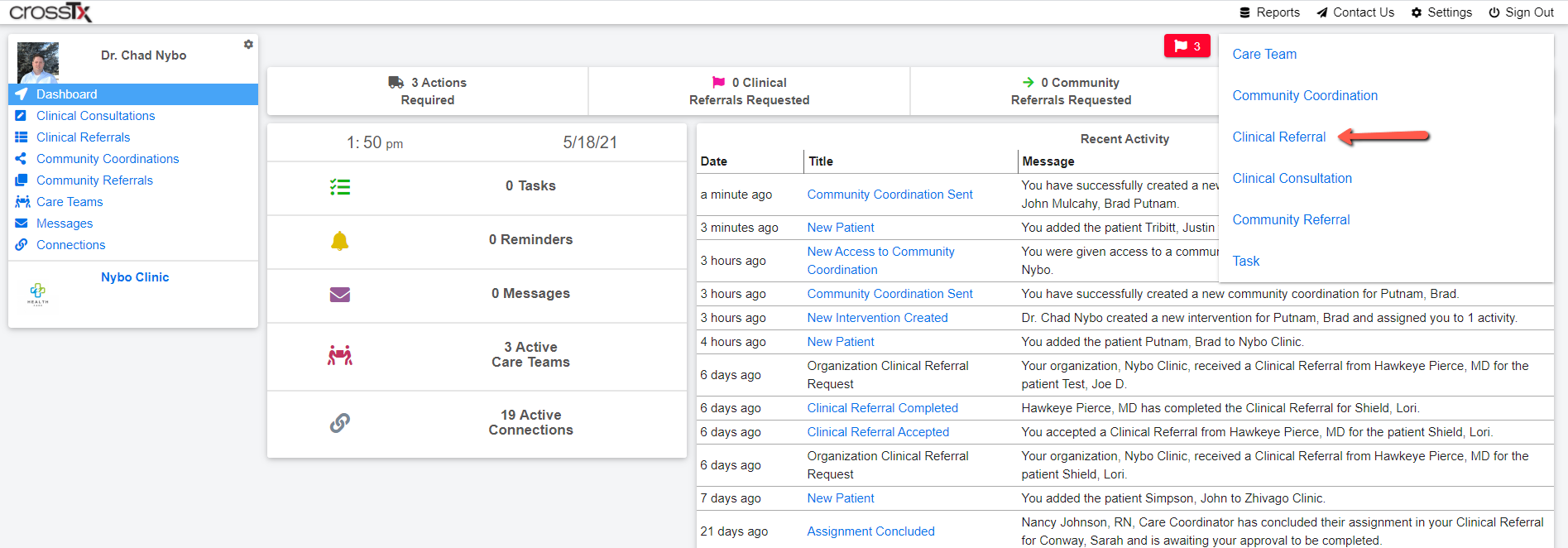
Sending a referral is quick and easy. Simply log into CrossTx using the email address and password associated with your account. Click on the blue Create button in the top right corner of the platform and then choose Clinical Referral from the drop down list.
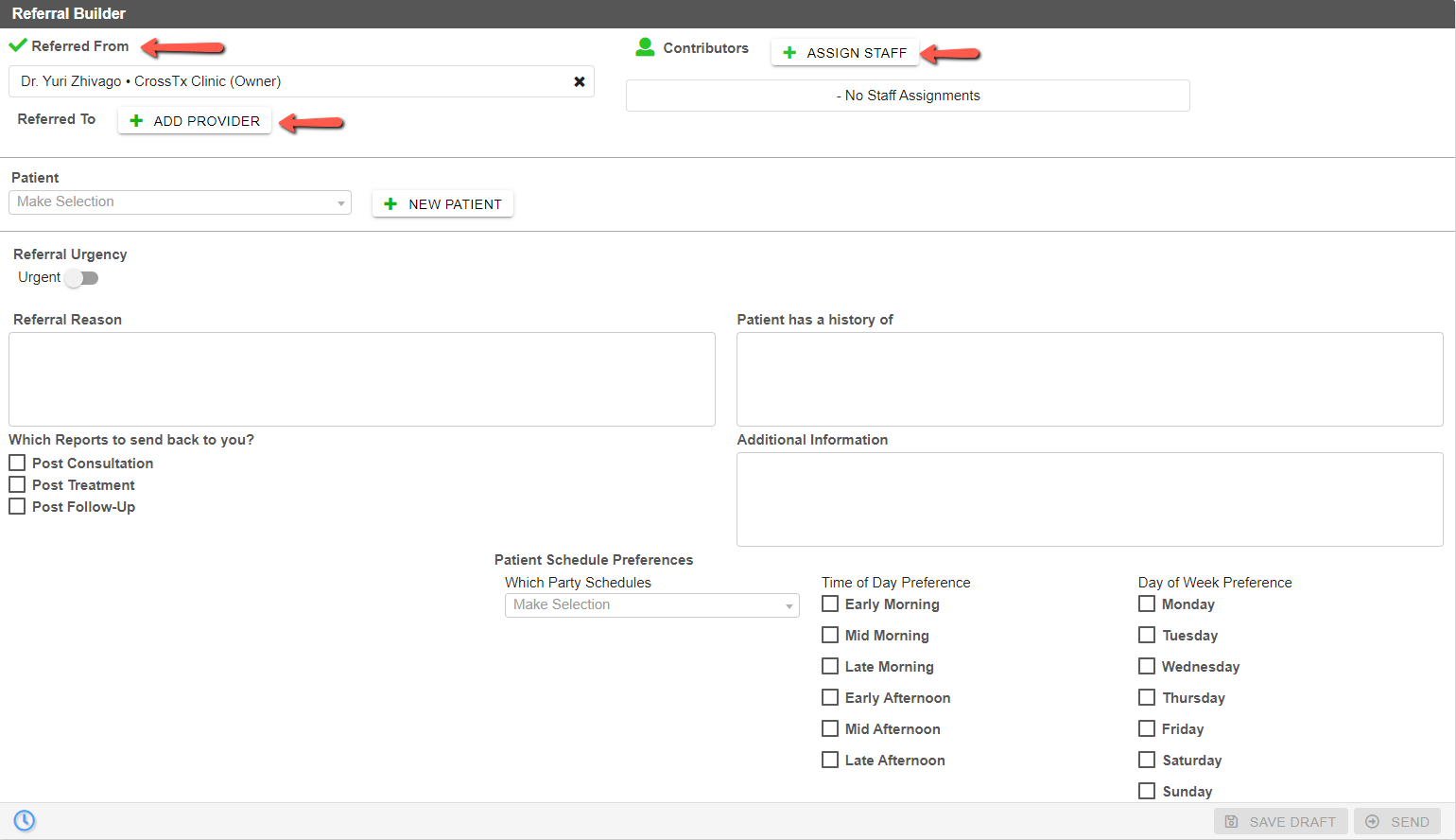
The referral builder will appear. Choose the Referred From provider, the Referred To provider (where the referral is going), and Assign Staff to manage the referral on behalf of the provider. Note you can add more than one Referred To providers if the referral is going to multiple providers.
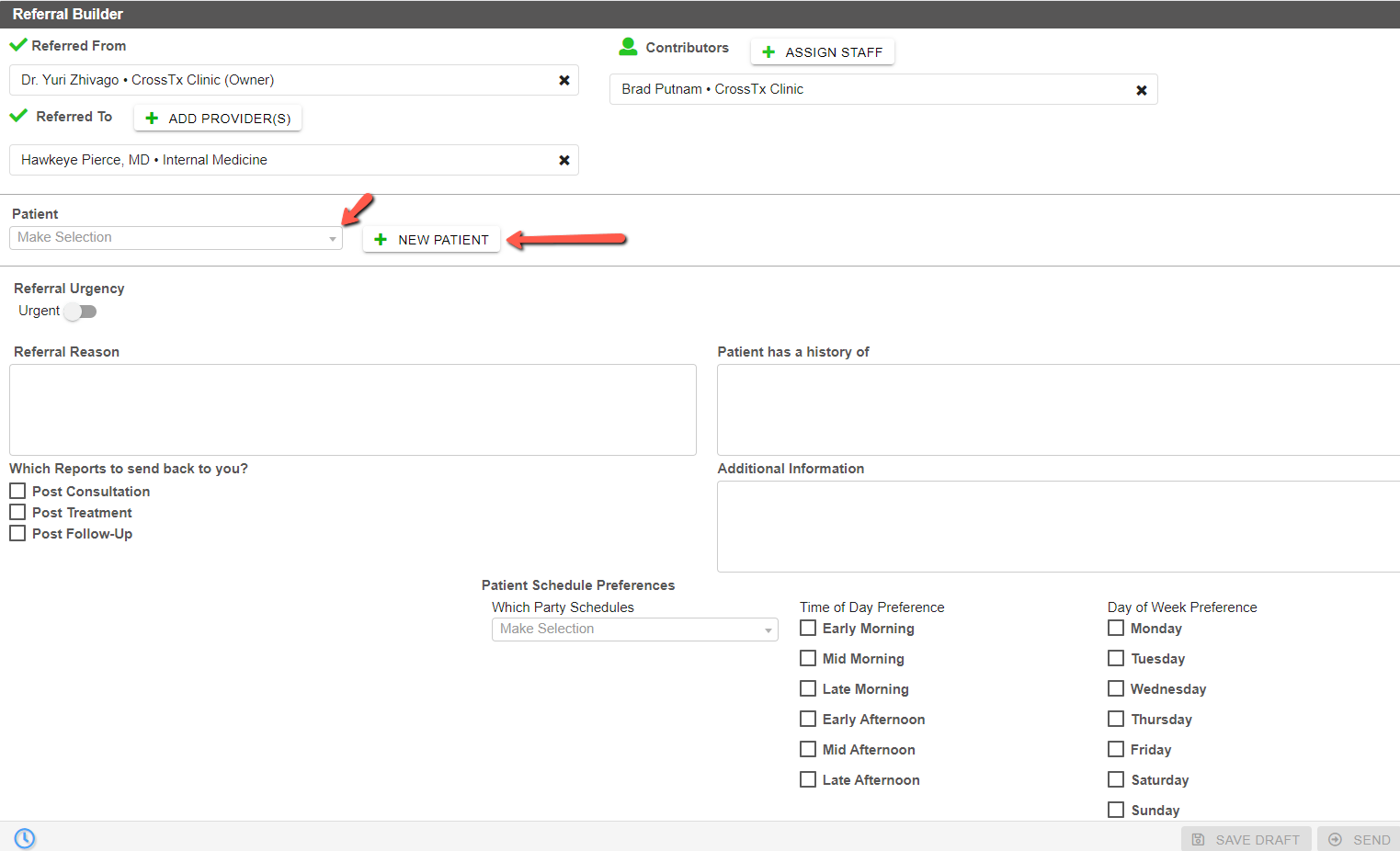
Next the patient needs to be added. If you already have patients in the platform from an interface from your EMR or file transfer click in the Patient drop down box and type the patient's name and add them. If this is a new patient to the CrossTx platform then click the New Patient button.
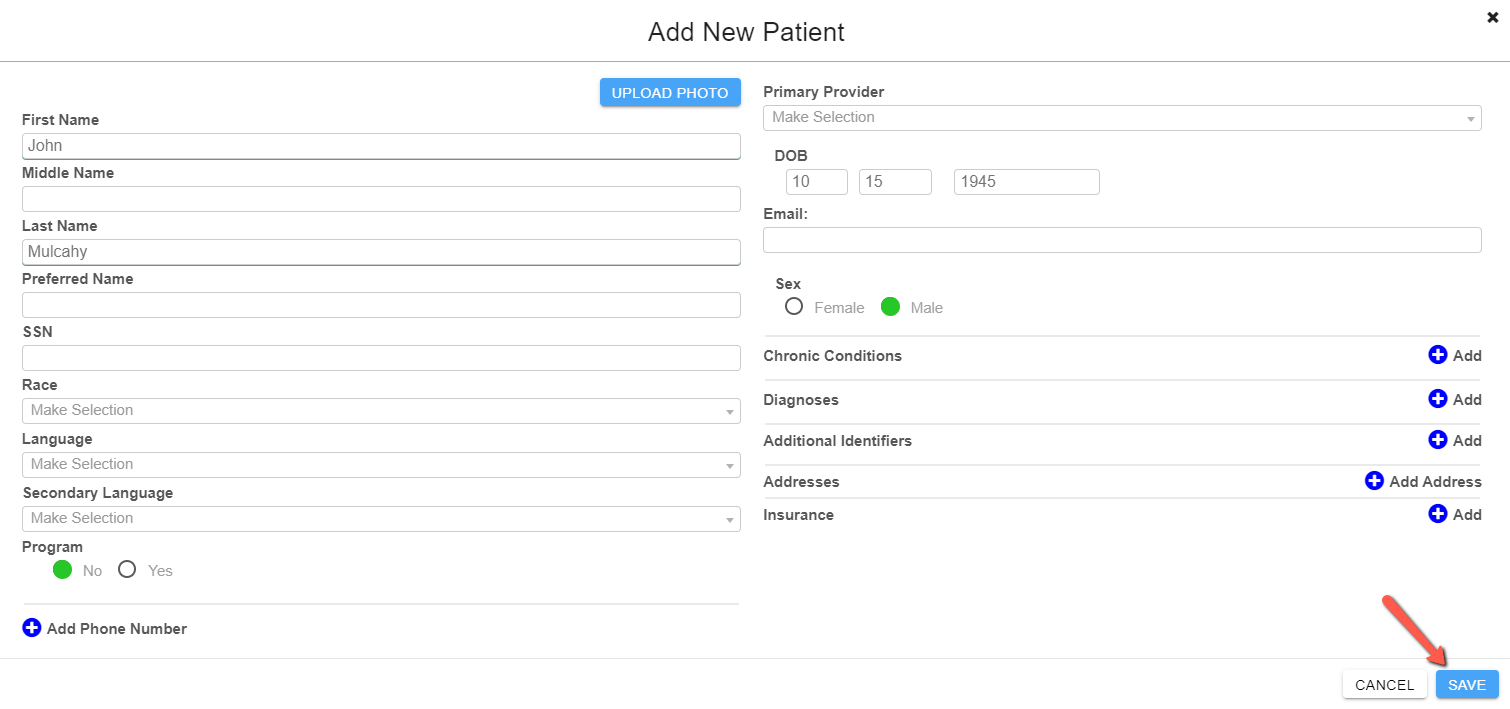
The Add New Patient builder will appear after click the New Patient button. You can add as much information about the patient as you wish, but there are only four required fields allowing a patient to be created in seconds. First Name, Last Name, Date of Birth, and Sex are the only fields required to create a patient.
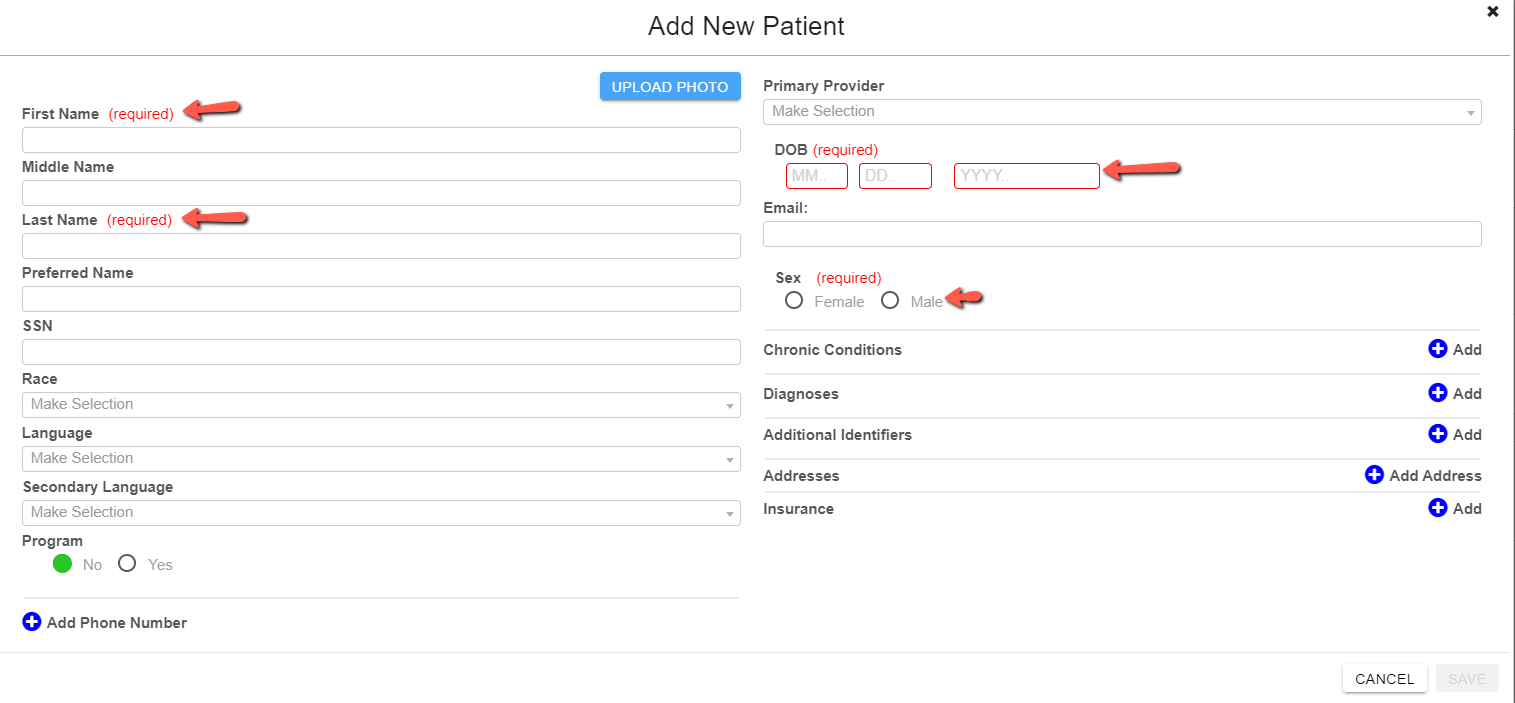
Once the required fields have been completed click the blue Save button at the bottom right.
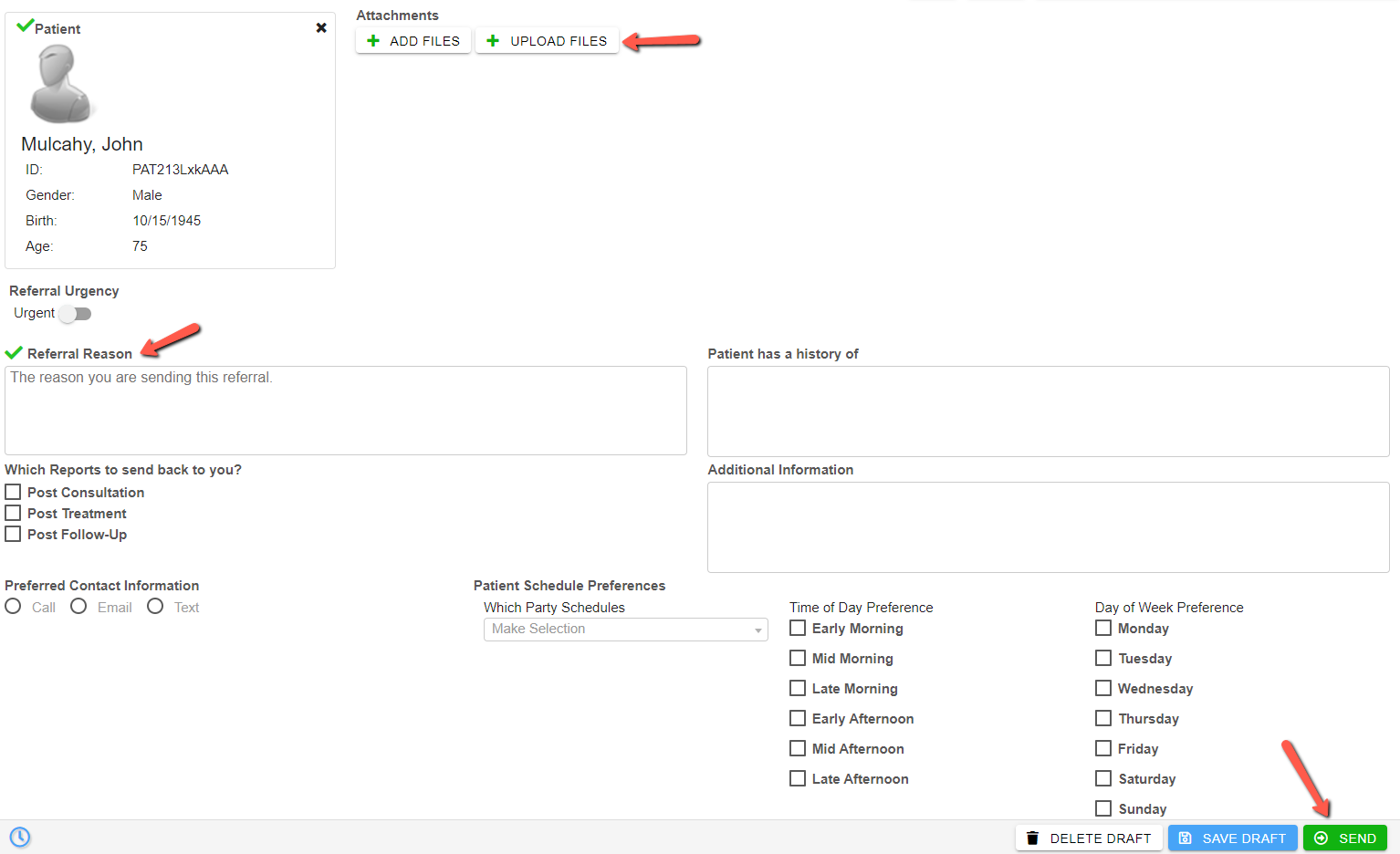
To complete the referral you need only provide a Referral Reason. You can add as much other information as needed including patient history, additional information, and scheduling preferences. The boxes will grow as large as you need them to and you can easily cut and paste from your EMR into the boxes. You can also upload documents and images of any type by clicking the Upload Files button to the right of the patient demographics. When you've completed adding all the information you would like to simply click on the green Send button at the bottom right of the referral builder. Your referral is on its way and the recipient has received a PHI free email notifying them that your referral is waiting for them to accept.
Comments
0 comments
Please sign in to leave a comment.