
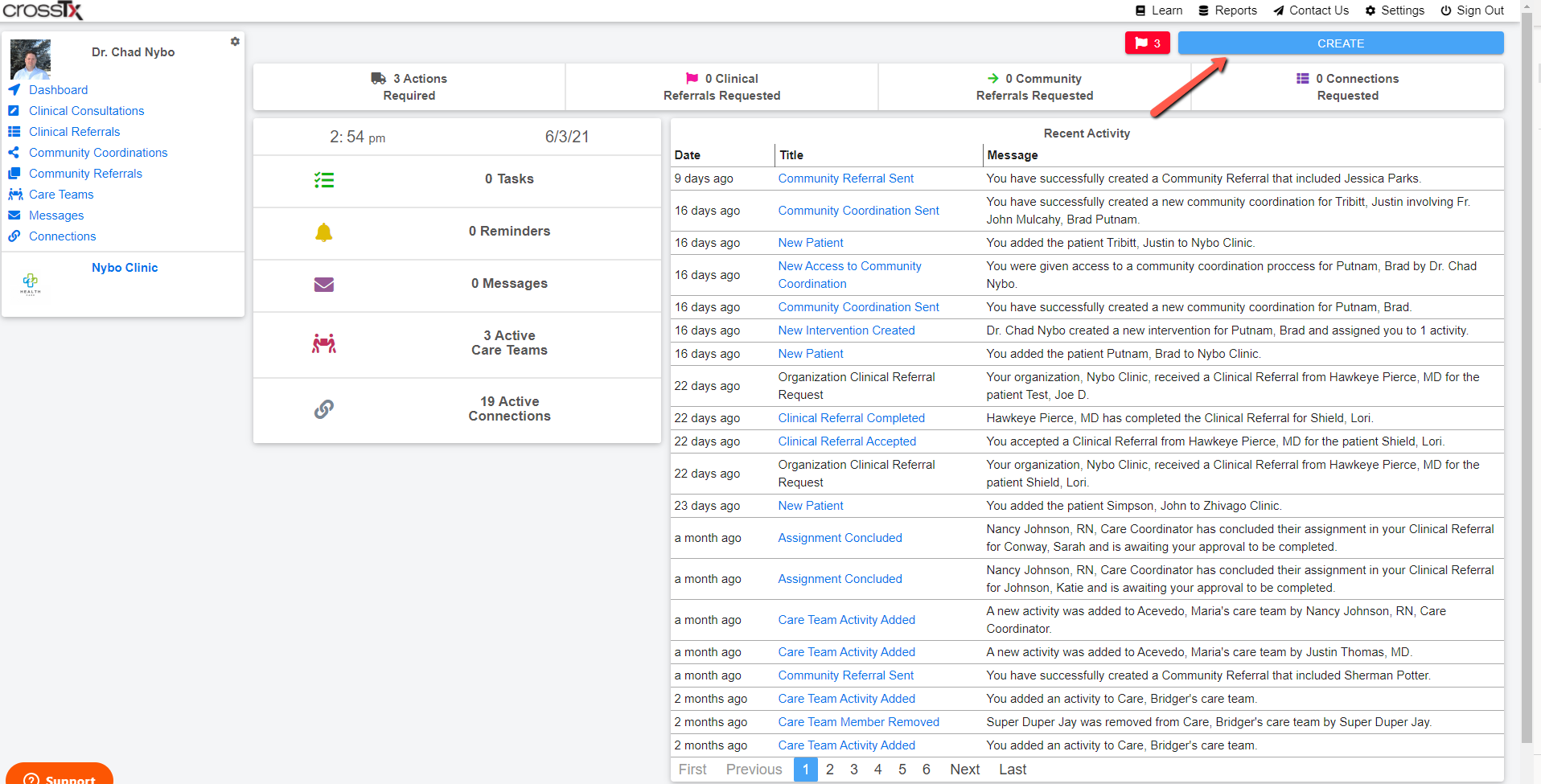
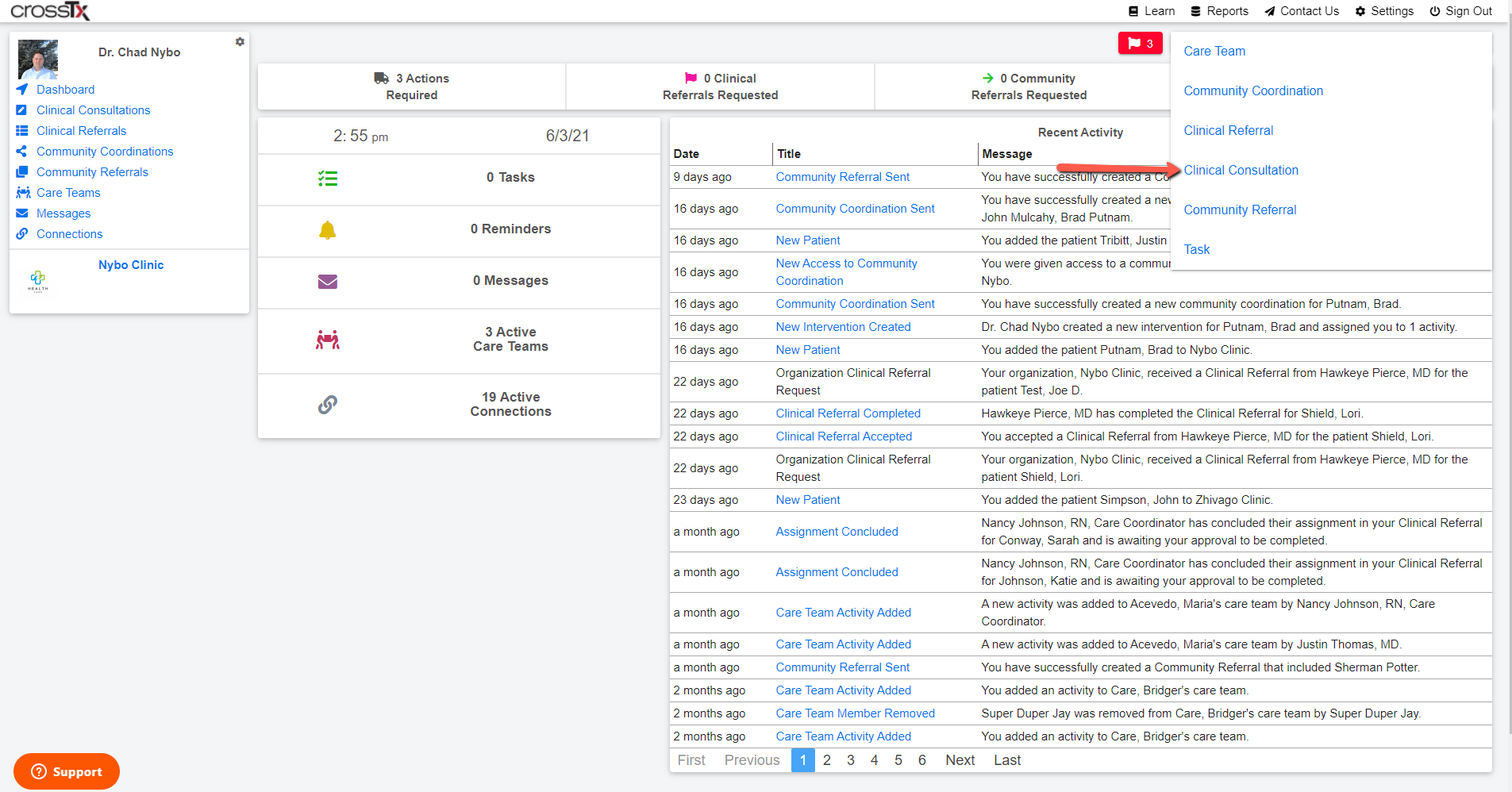
To create a Clinical Consultation click on the blue Create button top right and select Clinical Consultation from the drop down menu.
Then Assign Staff if desired and choose the provider you are referring to by clicking the Add Provider button.
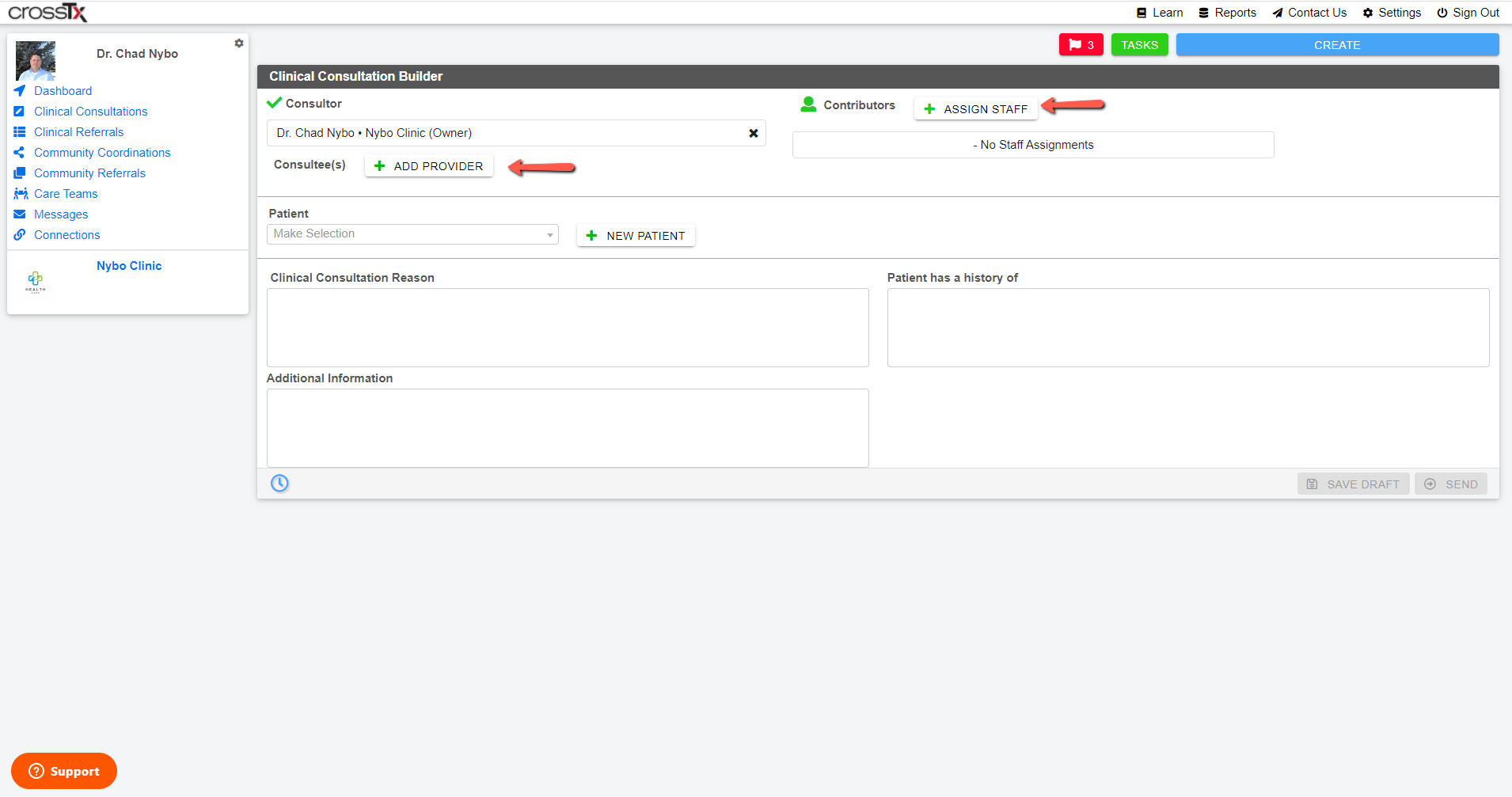
Enter at least four characters of the provider you are sending the the consultation to. If the icon to the left of the name is red that means they are already in the CrossTx platform. If the icon is black the provider will need to be invited into the platform.

If the patient is already in the CrossTx platform you can search the patient list by entering at least four characters of the patient's name into the search bar or click the New Patient button and create a new patient.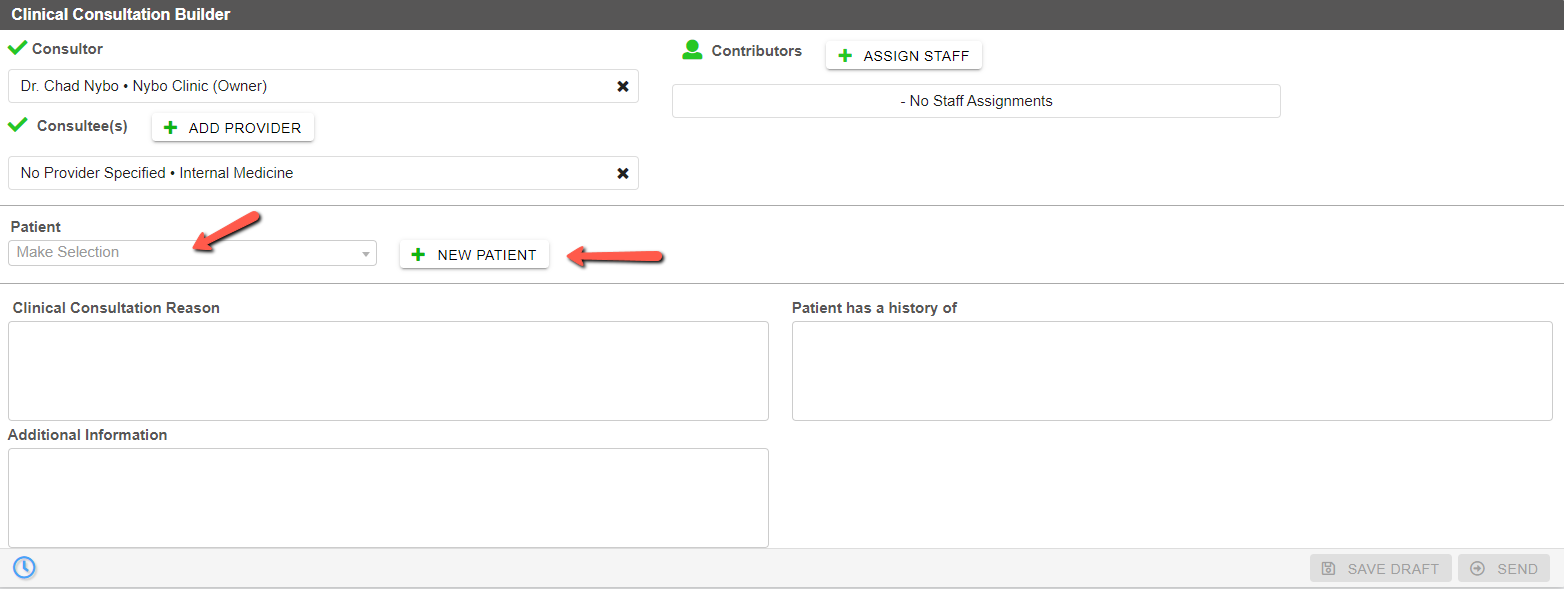
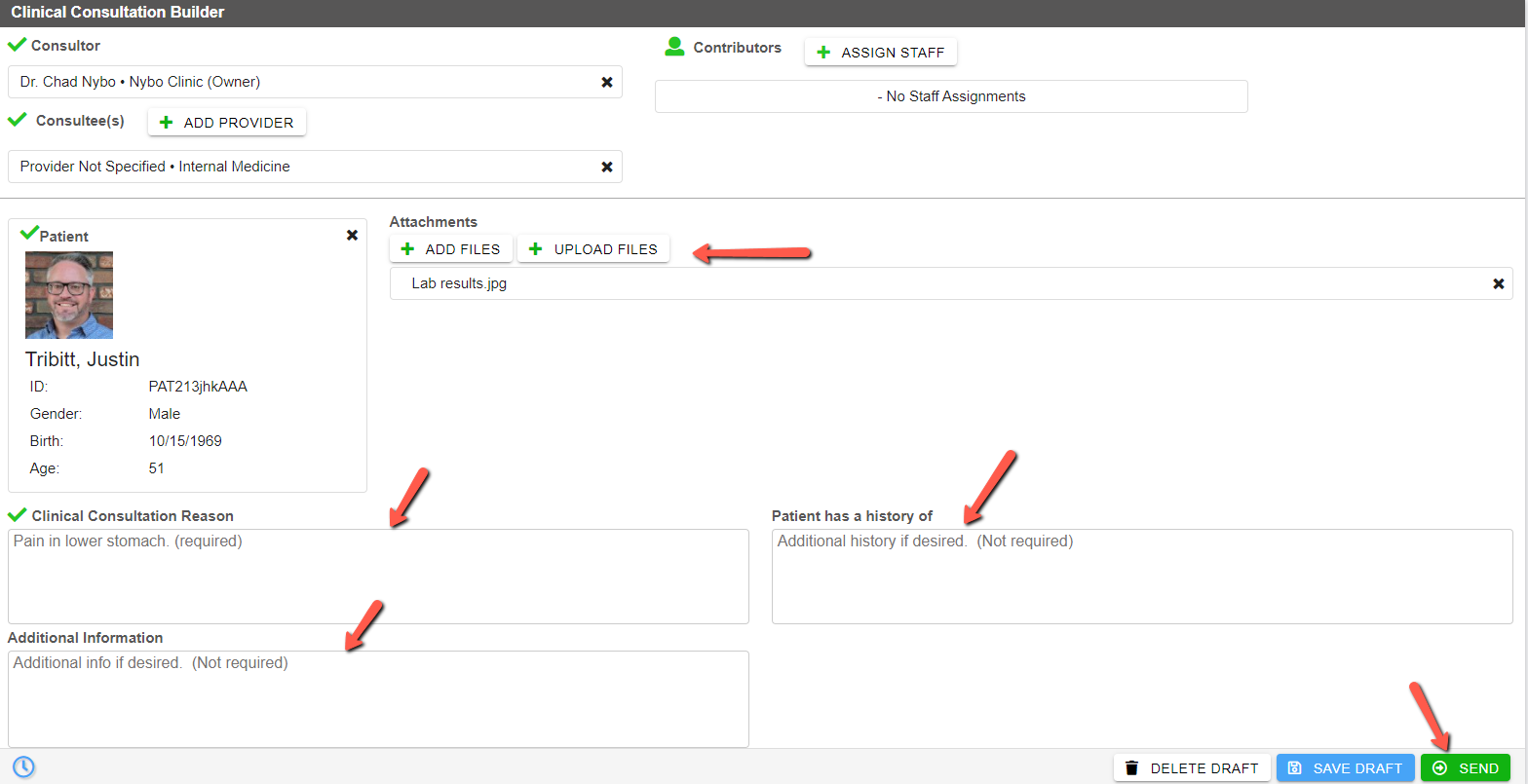
Upload a file if desired by clicking the Upload Files button, add a Consultation Reason (required), Patient History (not required), and Additional Info (not required) and click the green Send button.
The consultation is now on its way and the receiving provider has received notification that they have a new Clinical Consultation to review.
Comments
0 comments
Please sign in to leave a comment.